How to Highlight a PDF
Introduction
Highlighting text in PDF documents is a common practice in both educational and professional settings. Students highlight key information in academic articles, e-books, and class notes to facilitate study and review.
Similarly, professionals use highlight to add marks to crucial data in reports, contracts, and other official documents. The ability to highlight text in PDFs is essential because it allows users to interact with content in a meaningful way without altering the original document.
It may seem that highlighting a PDF is simple, but not all PDF editing software offers tools that give good results when underlining text in a PDF. This is where PDFBeast comes in.
In this article, I will explain in detail how to highlight a PDF with PDFBeast and give you a few tips to ensure that the final result is as good as you expected.
How to Highlight a PDF with PDFBeast
Highlighting text is very common in digital documents, and while you could print the PDF, highlight it by hand using a highlight marker, and scan it back in, this is a tedious task and the results are not great.
With PDFBeast, you can highlight any PDF very easily and in just a few seconds. Here is a detailed, step-by-step tutorial on how to highlight a PDF using the PDFBeast tool:
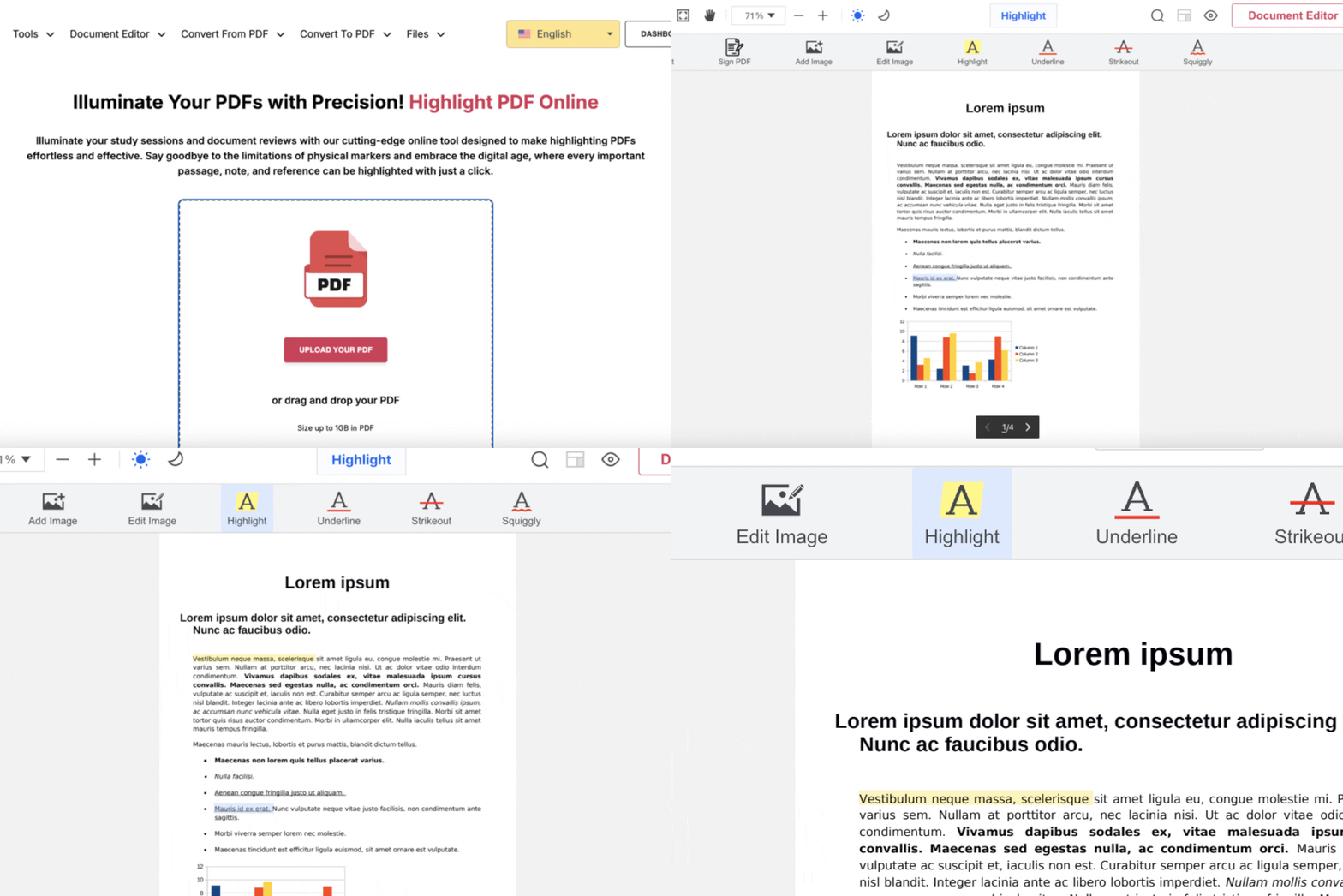
- The tool we'll be using is PDFBeast, so the first step is to go to the website of this PDF document editor. It's compatible with all devices and operating systems, so you can access the tool from your mobile phone or tablet, as well as your computer.
- At PDFBeast, you'll find different tools for editing your PDFs, each with a different purpose. In this case, you'll need to select the "Highlight PDF" tool, also available at this link.
- The next step is to upload the PDF you want to highlight. The interface is very intuitive, so as soon as you enter, you'll see the document upload area in the center.
- Here, you'll need to select the text highlighting tool under the "Highlight" button.
- Now, proceed to highlight all the parts of the text you deem appropriate. Simply select the word, phrase, or paragraphs you want to highlight and add the highlight.
- After you've highlighted everything necessary in the PDF, it's time to download the final document to your device. Doing so is very simple; you just have to click the "Download" button.
Tips and Best Practices for Highlighting PDFs
In conclusion, now that you know how to highlight in PDFs, I'd like to share some tips and best practices for highlighting PDFs.
While highlighting a PDF might seem easy, highlighting it practically and efficiently isn't. Here are some tips I think you should apply:
Consistency in highlighting
Use consistent colors and highlighting styles throughout your document.
For example, you can use one color for definitions, another for quotes, and a third for key concepts. This makes it easy to quickly identify different types of information.
Keep in mind that you can even change the text color in your PDF.
Don't over-highlight
Often, everything in a text seems important.
Adding highlight with too much text can be counterproductive and cause important information to get lost among the highlighted lines. Be selective and highlight only what you really need to emphasize.
Add notes to the text
Highlighting may not always be enough to highlight parts of the text.
Thanks to PDFBeast, you can add annotations and comments that provide additional context and clarify why certain parts of the document have been highlighted.
Here's how to add notes to your PDF.
Review the final document
Before downloading the highlighted PDF, review the document.
This way, you can make sure everything is consistent and that you haven't skipped any parts of the text. If needed, remember that you can easily delete text from the document.